Hidden and System Attributes in Windows
Overview
In Windows, the Hidden (H) attribute marks a file or folder as hidden, while System (S) marks it as a system object. A file with H + S remains invisible in File Explorer even when hidden files are shown, if “Hide protected operating system files (Recommended)” is enabled.
Note
You can set System on an ordinary user file. This attribute is unrelated to the NT AUTHORITY\SYSTEM account and does not grant additional access rights.
Two File Explorer settings
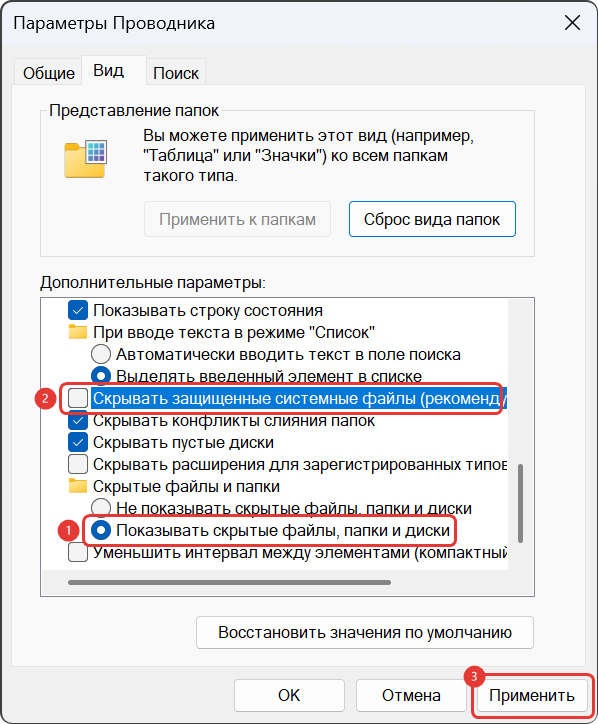
To see H + S objects, press Win + R → control.exe folders → View:
- Select Show hidden files, folders, and drives.
- Clear Hide protected operating system files (Recommended) and confirm the Windows warning.
- Click Apply. If the file list has not refreshed, press
F5in File Explorer.
The Hidden items option in File Explorer (View → Show) controls only the first setting.
File visibility with different settings:
| Show hidden files | “Hide protected operating system files” | File without H or S | File with H | File with S | File with H + S |
|---|---|---|---|---|---|
| Off | Selected | Visible | Hidden | Visible | Hidden |
| On | Selected | Visible | Visible | Visible | Hidden |
| On | Cleared | Visible | Visible | Visible | Visible |
Practical example
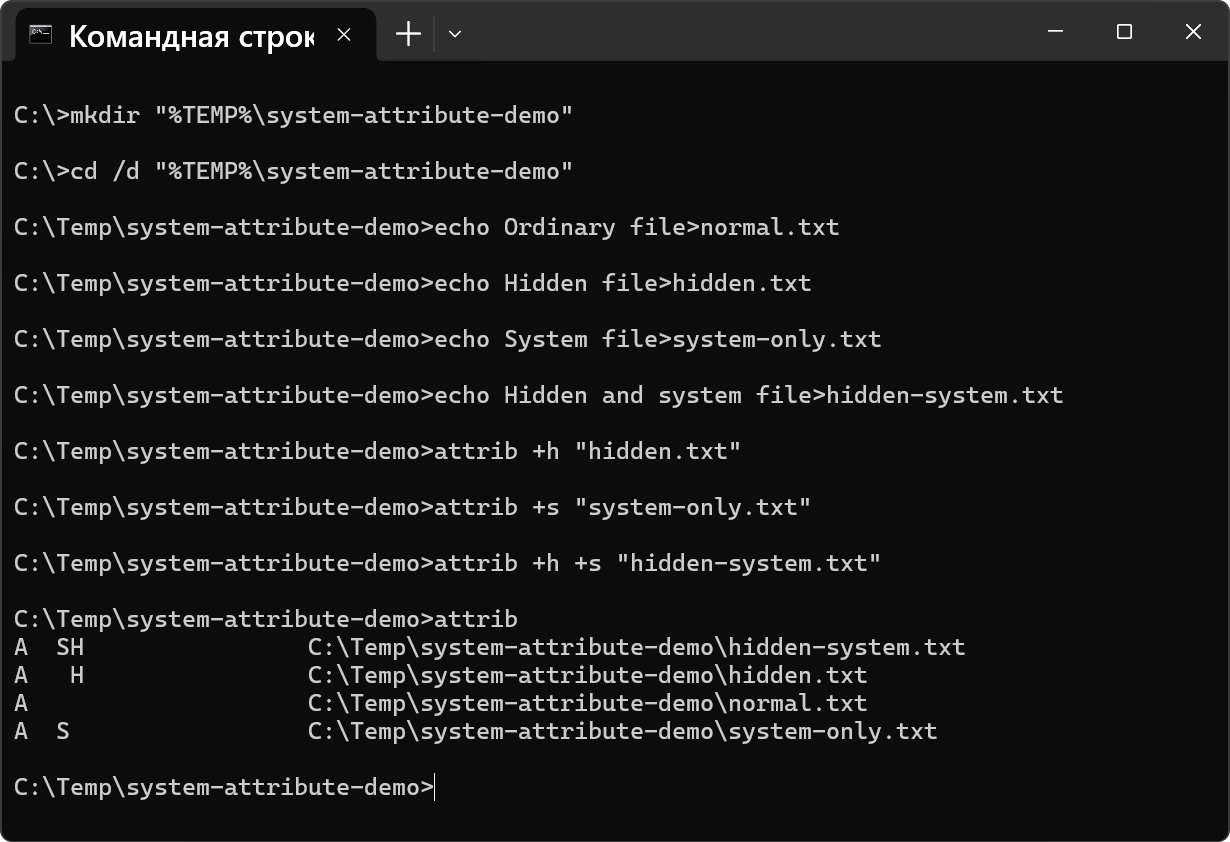
1. Create four test files
Run these commands in CMD. If %TEMP%\system-attribute-demo already exists, remove it (see Remove the test folder) or change the folder name in all the commands below.
mkdir "%TEMP%\system-attribute-demo"
cd /d "%TEMP%\system-attribute-demo"

echo Ordinary file>normal.txt
echo Hidden file>hidden.txt
echo System file>system-only.txt
echo Hidden and system file>hidden-system.txt

attrib +h "hidden.txt"
attrib +s "system-only.txt"
attrib +h +s "hidden-system.txt"

attrib
+ sets an attribute; - removes it. The attrib output may also include Archive (A), which does not affect visibility.
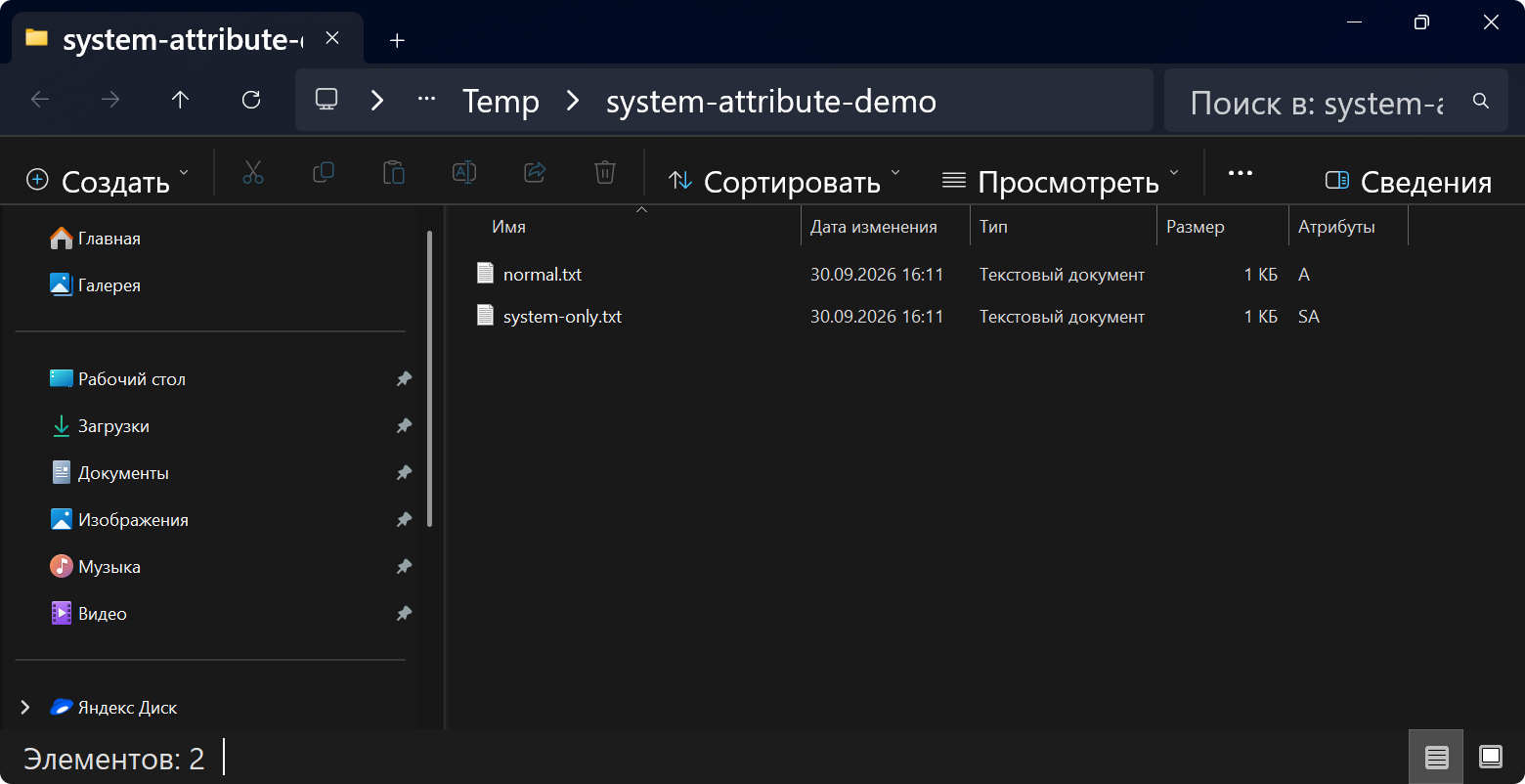
2. View the folder with default settings
Open the folder from the same CMD window:
explorer .
Turn off hidden file display and enable hiding protected operating system files (see Two File Explorer settings). Only normal.txt and system-only.txt will remain visible.
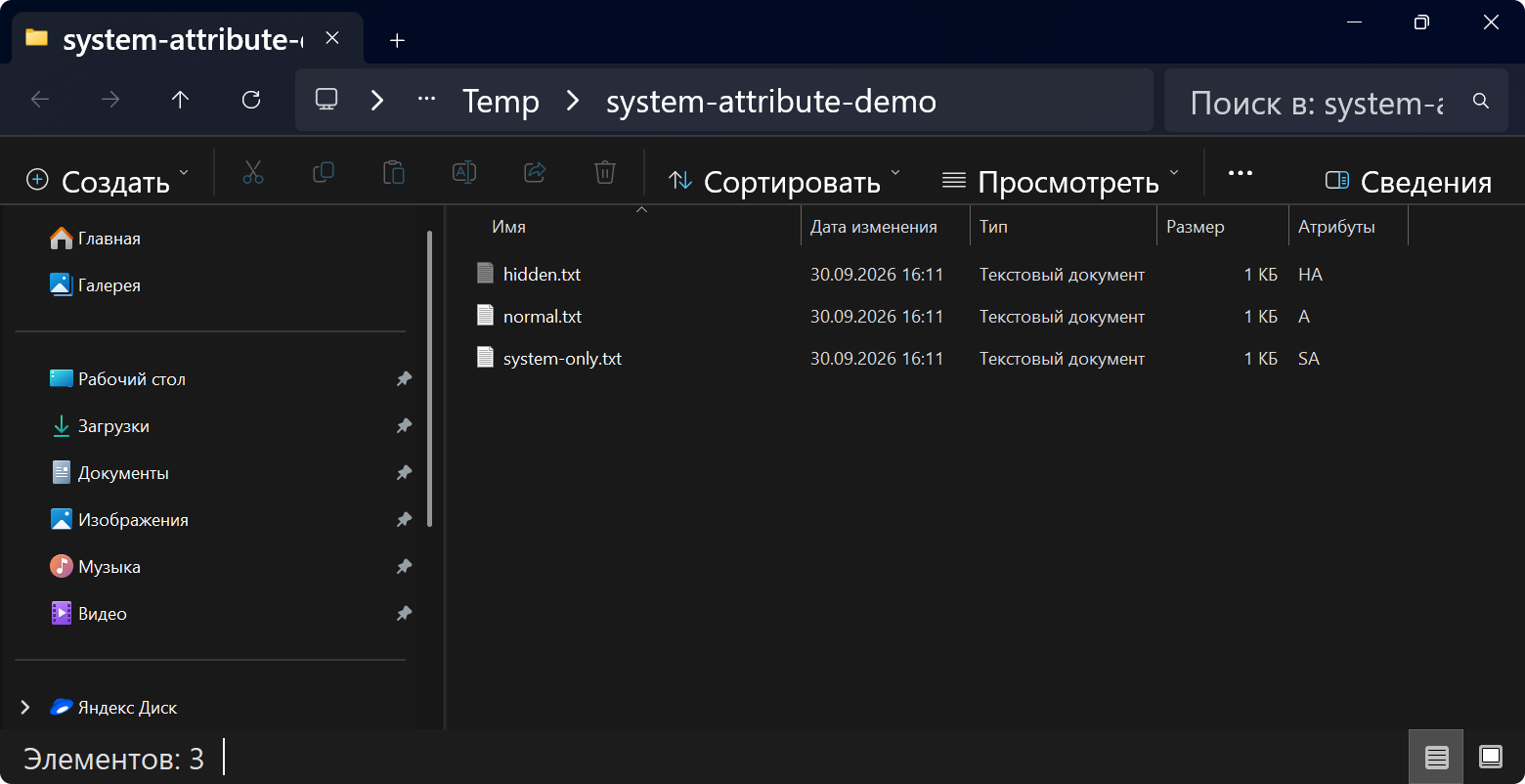
3. Show hidden files
Enable Hidden items (View → Show → Hidden items) while leaving protected operating system files hidden. hidden.txt appears, but hidden-system.txt remains hidden.
4. Show protected operating system files
In File Explorer Options → View, clear Hide protected operating system files (Recommended), confirm the Windows warning and click Apply. Leave hidden file display enabled. All four files are now visible.
The warning refers to files “marked as system or hidden”, but this checkbox affects only objects with both H and S set. Hidden file display controls hidden.txt; system-only.txt is visible with every combination of these settings.
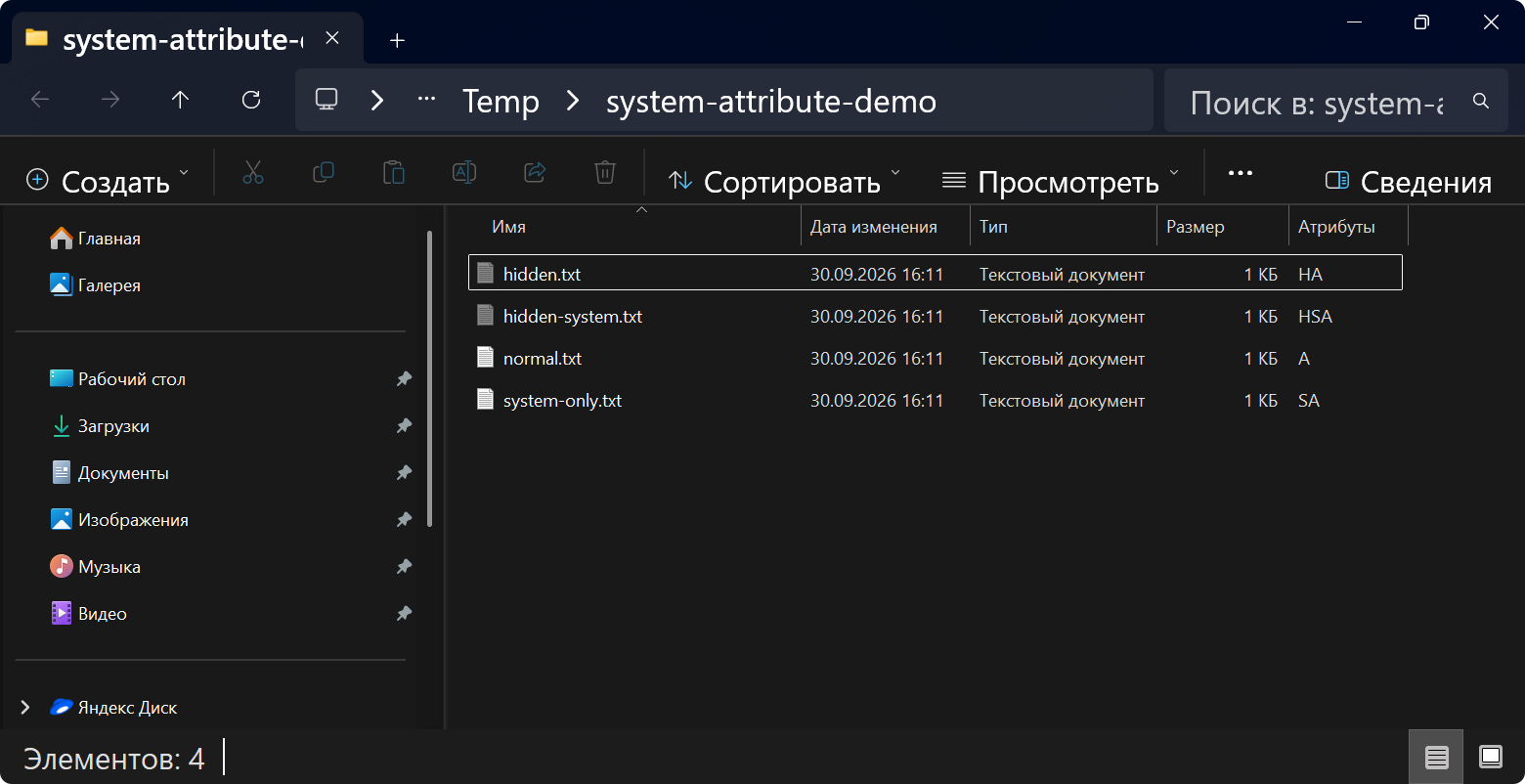
Inspect files without changing File Explorer settings
Hiding a file in File Explorer does not change its access permissions. With the appropriate permissions, you can read the file using its known path.
CMD
From the test folder:
rem Show all files and folders, including hidden and system objects
dir /a

rem Show objects with the System attribute
dir /a:s

rem Show objects with both Hidden and System attributes
dir /a:hs

rem Inspect a specific file's attributes
attrib "hidden-system.txt"

rem Read the file using its known path
type "hidden-system.txt"
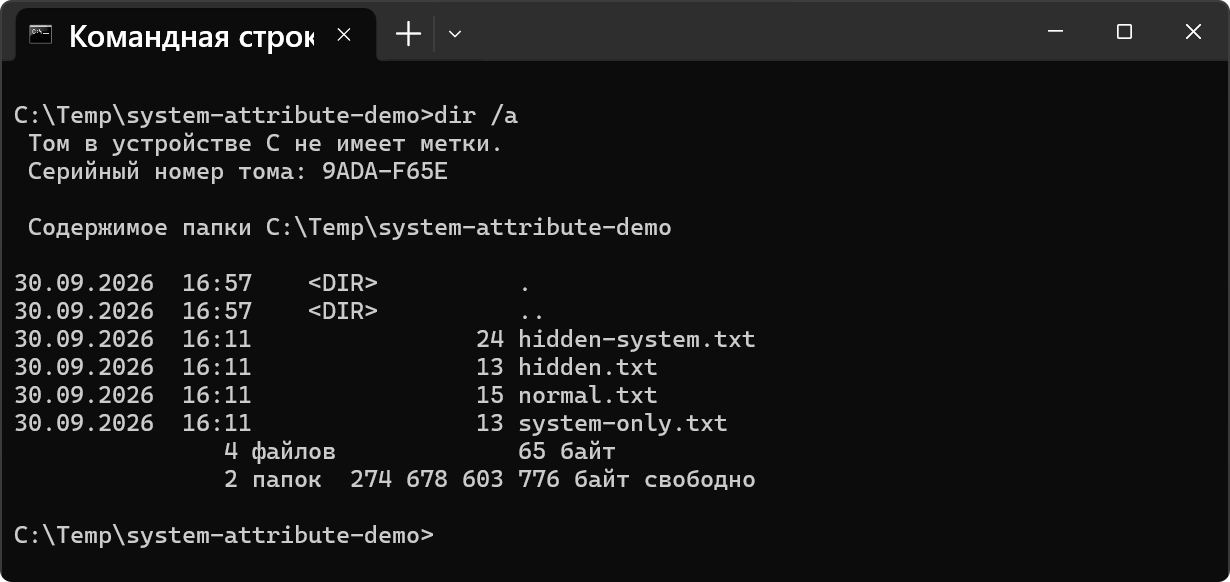
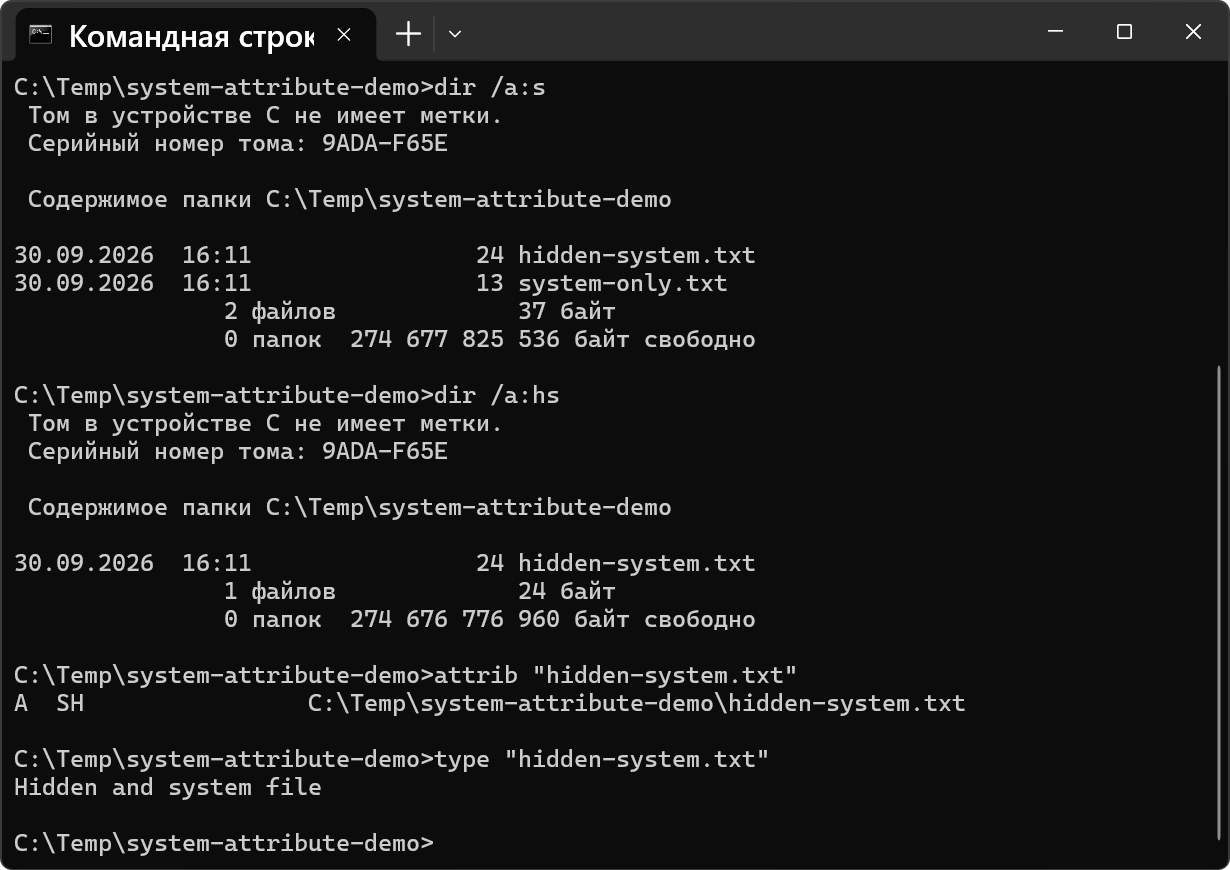
PowerShell
$demoPath = Join-Path $env:TEMP 'system-attribute-demo'

Get-ChildItem -LiteralPath $demoPath -Force |
    Select-Object Name, Attributes
To inspect one object:
Get-Item -LiteralPath (Join-Path $demoPath 'hidden-system.txt') -Force |
    Select-Object FullName, Attributes
-Force includes hidden and system objects in the results. The Attributes field for hidden-system.txt contains Hidden and System.
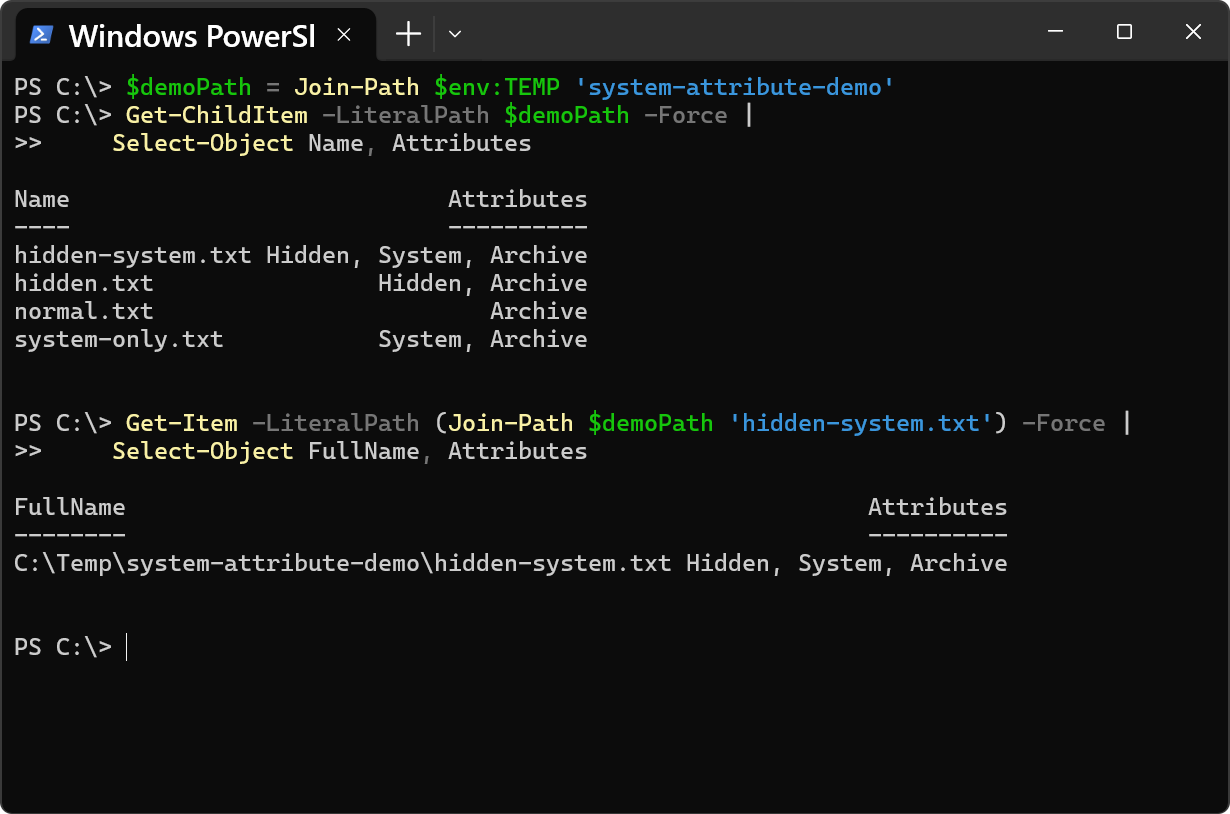
The equivalent of dir /a:hs uses -Attributes, where + means “and”:
Get-ChildItem -LiteralPath $demoPath -Attributes Hidden+System
Remove the attributes
In CMD, from the test folder, run:
attrib -s -h "hidden-system.txt"
attrib "hidden-system.txt"
Remove H and S together in one command. Removing them individually fails: attrib -h reports that it cannot reset a system file, and attrib -s reports that it cannot reset a hidden file.
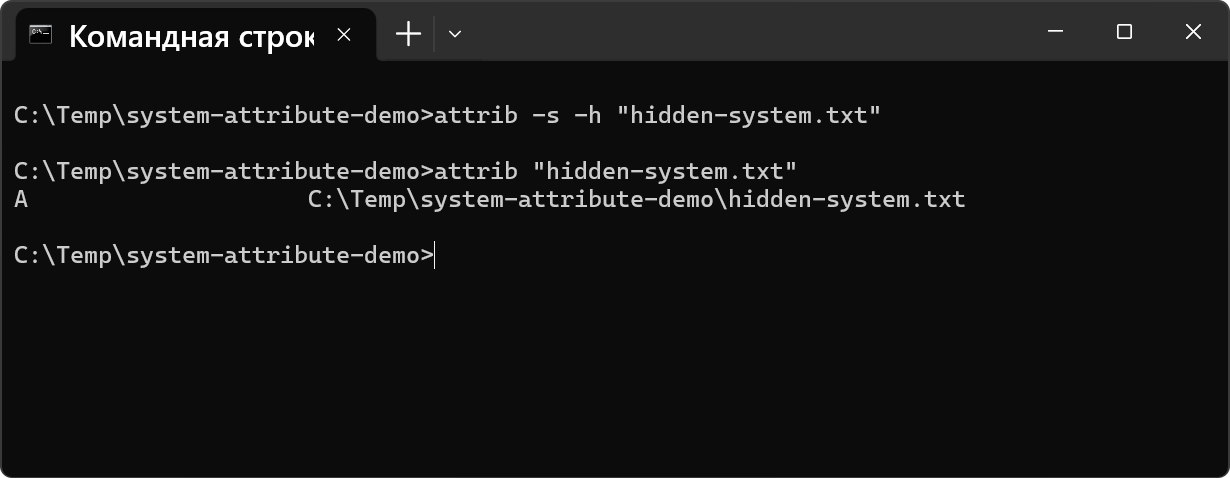
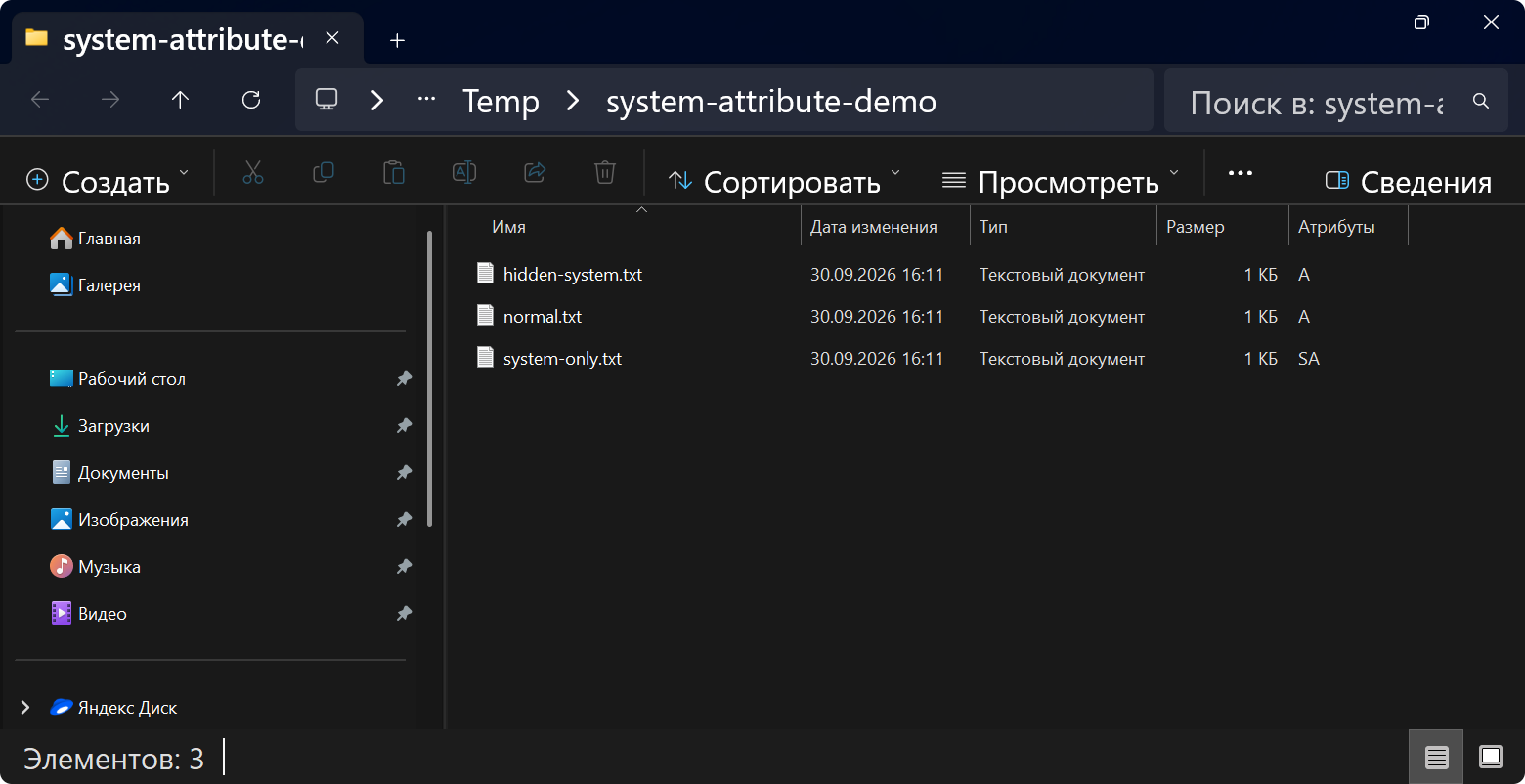
After removing H and S, restore the default File Explorer settings: turn off hidden file display and enable hiding protected operating system files. hidden-system.txt remains visible. Its contents have not changed.
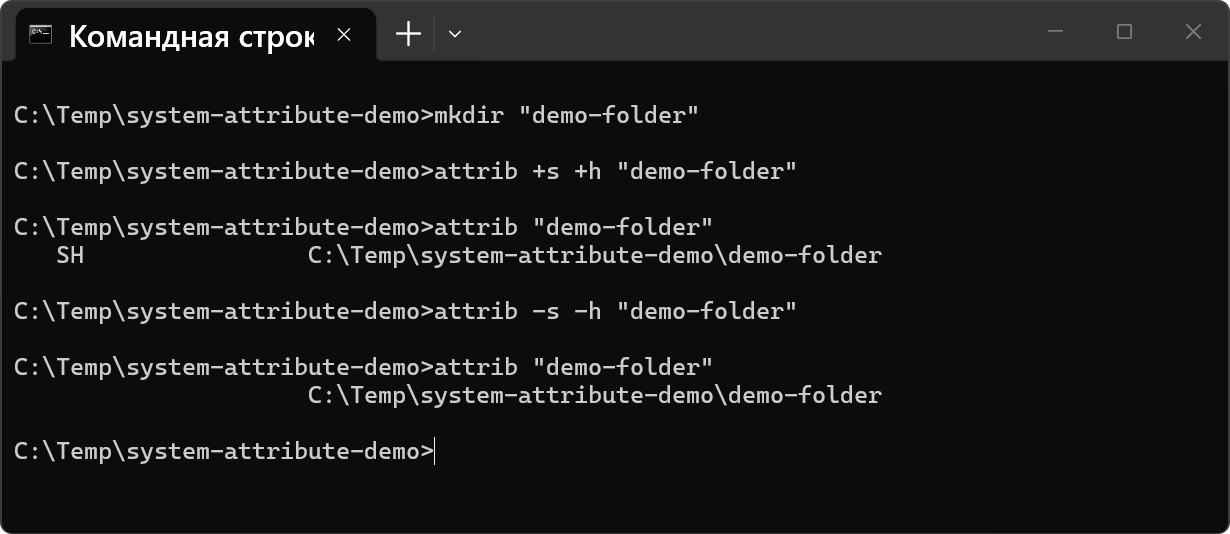
Set folder attributes in the same way:
mkdir "demo-folder"
attrib +s +h "demo-folder"
attrib "demo-folder"
attrib -s -h "demo-folder"
attrib "demo-folder"
These commands change the folder's own attributes: attrib shows SH after +s +h, and an empty attributes field after -s -h. For recursive processing, attrib provides /S and /D.
Remove the test folder
CMD cannot remove its current working directory, so leave the folder first:
cd /d "%TEMP%"
rd /s /q "%TEMP%\system-attribute-demo"
rd /s removes the contents, including hidden and system files.
Warning
delwithout/asilently skips files with H or S attributes. In this test folder,del *.txtwould remove onlynormal.txtandhidden-system.txt(after their attributes have been removed), leavinghidden.txtandsystem-only.txt. Usedel /a *.txtto remove those too.
Use in attacks
H + S is a simple way to hide a file from a user: File Explorer does not show it with default settings, or even with Hidden items enabled. MITRE ATT&CK classifies this as T1564.001 (Hide Artifacts: Hidden Files and Directories).
Final demonstration
The screenshots and recordings show the original Russian Windows interface.
Questions or corrections? iam@kgmnotes.com.
Original screenshots and recordings may contain Russian text.